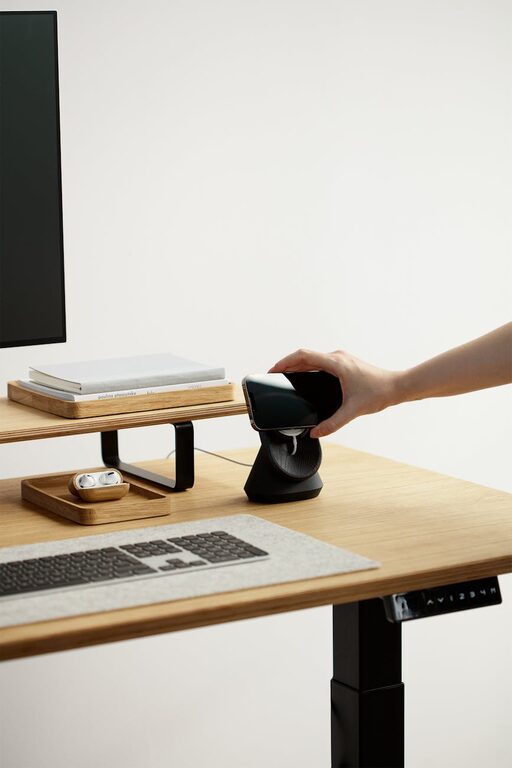

Organizing files on your computer may seem like a small task, but it can have a big impact on your productivity and peace of mind. A cluttered desktop or disorganized folders can slow you down, increase stress, and make it difficult to find what you need when you need it. Luckily, with a few straightforward techniques, you can create a system that keeps your files neat, accessible, and easy to manage.
In this post, we’ll cover practical tips for organizing your files effectively, whether you’re a student, professional, or just want a cleaner digital workspace.
Why Organize Your Files?
Before diving into tips, it’s important to understand why organizing files matters:
– Saves time: Quickly locate documents or media without endless searching.
– Improves productivity: Less clutter means fewer distractions.
– Reduces stress: A tidy computer is easier to navigate.
– Prevents data loss: Organized backups and sorting minimize accidental deletion.
– Enhances collaboration: Well-named and structured files make sharing easier.
Start with a Clean Slate
Delete Unnecessary Files
Begin by reviewing your files and deleting anything you no longer need. Old downloads, duplicate photos, incomplete projects, or unused applications can all take up space and contribute to clutter.
– Empty your trash or recycle bin afterward to free up disk space.
– Be cautious before deleting—consider archiving important files to an external drive or cloud storage.
Backup Important Data
Before making major changes, back up important files to avoid accidental loss. You can use:
– Cloud services like Google Drive, Dropbox, or OneDrive.
– External hard drives or USB flash drives.
Create Logical Folder Structures
Use a Hierarchical Approach
Organize your files into folders and subfolders based on categories relevant to your needs. For example:
– Work
– Projects
– Reports
– Personal
– Photos
– Vacations
– Family
– Documents
This structure helps quickly narrow down where a file belongs.
Keep Folder Names Simple and Consistent
Use clear, descriptive folder names, avoiding vague labels like “Stuff” or “Misc.” Consistency matters—if you use three-letter abbreviations for some folders, do the same across all folders.
Naming Your Files Effectively
A well-organized folder is only as good as its file names. Use a consistent naming convention that includes:
– Descriptive words: What the file is about.
– Dates: Use the ISO format (YYYY-MM-DD) for easy sorting.
– Version numbers: For documents with multiple revisions (e.g., v1, v2).
– Avoid spaces and special characters: Use underscores (_) or hyphens (-) instead.
Example: `ProjectX_Report_2024-06-01_v2.docx`
Utilize Tools to Assist Organization
File Management Software
Besides your computer’s built-in file explorer, tools like:
– TagSpaces: Allows tagging and categorizing files.
– File Juggler: Automates file organization based on rules.
– Duplicate Cleaners: Find and remove duplicate files.
Cloud Storage Features
Cloud platforms often provide:
– Automatic file syncing across devices.
– Built-in search and tagging.
– Easy sharing options.
Leverage these to keep files accessible and organized.
Keep Your Desktop Minimal
Resist the temptation to save everything on the desktop. Use it only for temporary files or shortcuts to your most-used folders and apps. A clean desktop starts your day with a clear mindset.
Regular Maintenance
Organization is not a one-time task. Schedule regular intervals (weekly or monthly) to:
– Clean up temporary files or downloads folder.
– Archive old projects.
– Review and update folder structures or naming conventions if needed.
Tips for Specific File Types
Photos & Videos
– Sort by event, date, or location.
– Use photo management apps for tagging and quick browsing.
Documents
– Separate by purpose (work, personal, school).
– Create a folder for forms and templates.
Emails & Attachments
– Use email clients’ folders or labels.
– Save important attachments directly to relevant folders.
Final Thoughts
Organizing files on your computer doesn’t have to be overwhelming. By setting up a clear folder system, adopting consistent naming practices, and making regular time for maintenance, you create a streamlined digital environment. This not only saves time but also reduces frustration and enhances your overall efficiency.
Start small, build your system gradually, and soon your computer will be as organized—and productive—as your mind!